Signing the wrong box correctly is still a mistake
Adding a signature image looks simple because the mechanical part is drag, resize and place. The harder part is reading the field around the mark.
A form can contain applicant, witness, parent, employer or approving officer fields, plus a nearby date box. Before changing the size, confirm whose signature is requested and whether the document asks for a visible image or a signing method that uses a certificate.
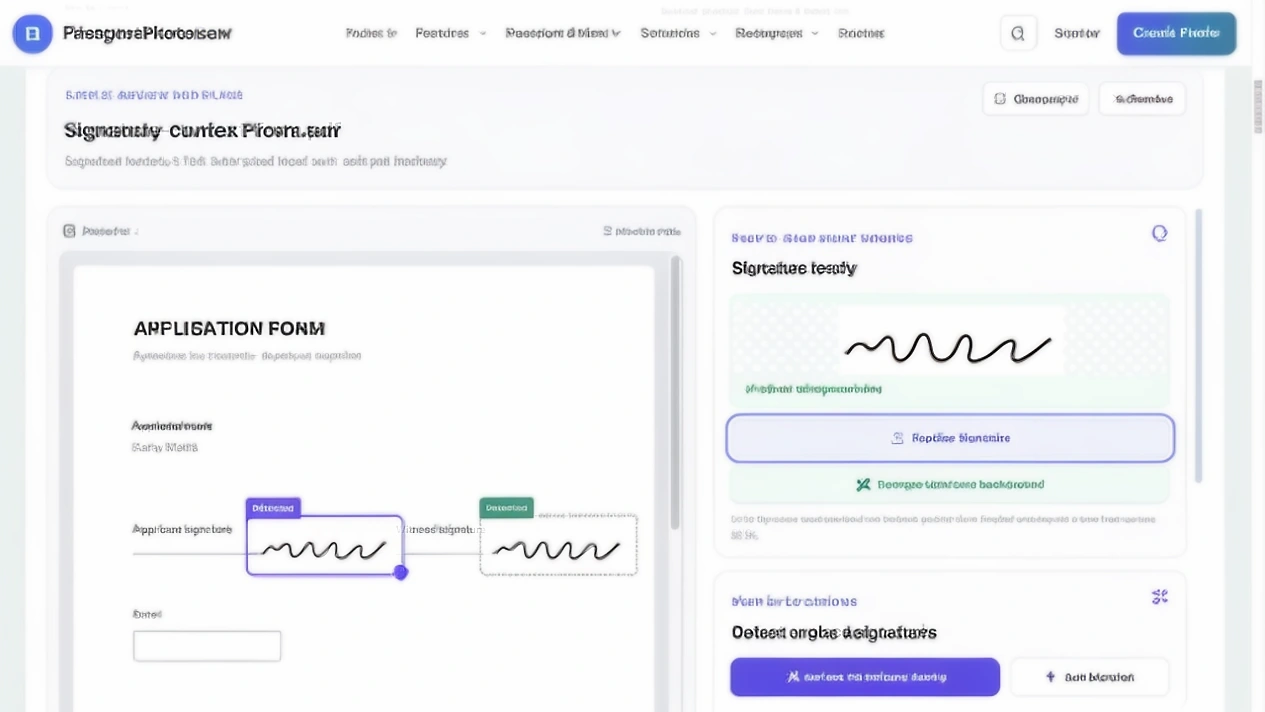
Read the field before placing anything
| Nearby wording | What to check |
|---|---|
| Applicant signature | Confirm that the mark belongs to the applicant named in the document. |
| Authorised signatory | Confirm that you have authority to sign for the named organisation or person. |
| Witness signature | Leave this field for the witness who is required to participate. |
| Parent or guardian | Check whether the signer is acting in that role for this application. |
| Signature and date | Leave room for both marks and keep the date readable. |
| Digital signature required | Check the prescribed electronic method or the method that uses a certificate. |
A blank line is not enough context. Read the heading, the name beside the field and the instruction above it before selecting a location.
Bring a clean signature source into the PDF
The PDF editor should receive a signature already separated from extra paper, printed labels and unrelated document information. If your genuine mark is inside a scan, use Signature Extractor; use Signature Resizer when the next workflow needs specific dimensions or file size.
A generated mark from Text to Signature is different and should not replace a genuine signature when the form asks for one. Keep the clean source separately.
Choose the source according to the document
| Source | Suitable when |
|---|---|
| Scan of your genuine signature | The document accepts an image of your handwritten mark. |
| Extracted genuine signature | Your mark exists inside your own authorised document and needs isolation. |
| Visual mark created from text | A creative use or a workflow that explicitly permits an image calls for a graphic. |
| Digital signature that uses a certificate | The recipient requires authenticated electronic signing. |
Automatic field detection cannot know who should sign
The current tool inspects selectable PDF text for Signature and Sign here, then creates editable suggestions. Our synthetic applicant and witness form returned two boxes on page 1. The suggestion finds a likely area; it does not decide who should sign there.
Read the label before accepting a box. A scan made from page images with no text layer needs Add location and manual placement.
A scanned form and a digital PDF can behave differently
A digital PDF can contain selectable text for label inspection. A scanned form can be a set of page images with no text layer, even when the words look sharp. Use the cleanest PDF you have, and use an unlocked copy only when you are authorised to modify it.
Fit the signature without stretching it
Place the mark inside the intended field and compare it with the printed line and nearby text. The current tool exposes a corner handle plus separate Width and Height controls. Changing them independently can stretch the handwriting, so use a clean crop when blank paper makes the signature look tiny.
Do not solve a loose crop by making the whole image enormous; that can push the mark over a name or date. A handwritten mark can extend above and below its baseline, so treat the printed line as a reference rather than a boundary around every pixel.
Common placement errors
| Problem | Why it causes trouble |
|---|---|
| Signature covers the printed name | Required information becomes harder to read. |
| Mark sits in a witness field | The wrong person appears to have signed. |
| Image extends outside the page | Part of the mark can disappear in the exported file. |
| Image is stretched | The handwriting no longer resembles the source. |
| Signature is tiny | The mark becomes difficult to recognise. |
| Date field is covered | The required date cannot be entered or reviewed. |
If the source is blurry or carries a white rectangle, return to signature preparation instead of adding layers inside the PDF.
Check contrast and the background
A dark mark on a white form is easy to inspect, while a coloured field or dark scan can reduce contrast. A JPG carries a rectangular background; a transparent PNG can let the page show through around the ink. The current tool includes Remove signature background for local cleanup. Check the result on screen and in a printed test when needed.
One signature can move or repeat across pages
PDFs with multiple pages deserve a check one page at a time because the same label can appear more than once. The workspace shows Previous, Next, the page number and placement count. Duplicate and Apply to all pages are useful only after the document gives you a page map.
- Confirm the signature appears on the intended pages only.
- Check that no field belonging to another person was filled.
- Verify that every mark stays inside the page boundary.
- Review nearby date, name and instruction fields.
An initials box is not automatically a signature box
Contracts and forms can use initials on intermediate pages and a full signature at the end. Follow the label exactly, keep a separate initials source when the recipient supplies one and make sure a long flourish does not cross into the date box.
A visible image and a certificate signature are different
Adobe documents typing, drawing or inserting a handwritten signature image into a PDF. Its workflow that uses a certificate is separate, requires a digital ID and supports authentication and document integrity. PassportPhotoBox places a visible image overlay; it does not verify identity or create certificate protection.
| Property | Image placed on PDF | PDF signature that uses a certificate |
|---|---|---|
| Visible handwriting can appear | Yes | Yes, depending on the signing appearance |
| Requires a digital ID | No | Yes |
| Cryptographically linked to the document | No | Yes |
| Helps detect later document changes | Not by the image itself | The certificate workflow is designed for this purpose |
| Works when a recipient specifically requires a DSC | No | Follow the required certificate workflow |
If an Indian portal asks for a DSC, an image is not a substitute
In Indian online services, Digital Signature Certificate, DSC and eSign can describe defined electronic signing processes rather than a picture of handwriting. If a portal names one of these methods, follow it; a PNG placed on a PDF is not a replacement simply because the page looks signed.
Permission to edit is not permission to sign for someone else
A PDF editor can place any image onto any page, but that ability does not establish who is authorised to sign. Use your own signature or a mark you are genuinely authorised to place within the receiving workflow.
Do not copy another person's signature from an earlier document and put it onto a new agreement, approval field or declaration. When the form requires a witness, officer or authorised signatory, that person's participation still has to follow the stated process.
Read the document before the graphics
Applicant, witness and date on one page
Suppose a form contains an applicant signature line on the left, a witness signature line on the right and a date box underneath. Load your authorised signature image and zoom out enough to read all three labels. Place the mark only on the applicant line, then reduce it until the flourish stays clear of the date box.
Do not accept the second detected blank area simply because it also contains the word “signature.” Export a test copy and reopen it. Confirm that the applicant mark stayed on the left, the witness field remains blank and the date area is readable.
Only the final page needs the full signature
A form with ten pages can contain acknowledgement text on every page and request one full signature on page ten. Map the required pages first, then place the mark only where the instructions call for it. A repeat action that saves time is useful only after the page map is correct.
When to return to the signature source
If the placed image is blurry, carries an unwanted white box or includes text from the original scan, return to the clean source and correct it before placing the image again. Fixing the asset first keeps the PDF review focused on field context and avoids covering document information with extra cleanup layers.
Reopen the exported PDF in another viewer
The final test should happen outside the editor. Open the downloaded file in another PDF viewer and navigate directly to every page that should contain a signature.
Check that the mark has not shifted, disappeared or changed scale. Confirm the page count, rotation and nearby text. If the receiving organisation provides an upload preview, perform one more contextual check there before submitting.
| Check | Why |
|---|---|
| Correct page count | No page disappeared during processing. |
| Correct signer field | The mark belongs to the right person. |
| Position unchanged | The export did not shift the overlay. |
| Signature readable | Scaling did not make the mark miniature. |
| Nearby text visible | The mark does not cover instructions or a date. |
| PDF opens normally | The recipient can access the file. |
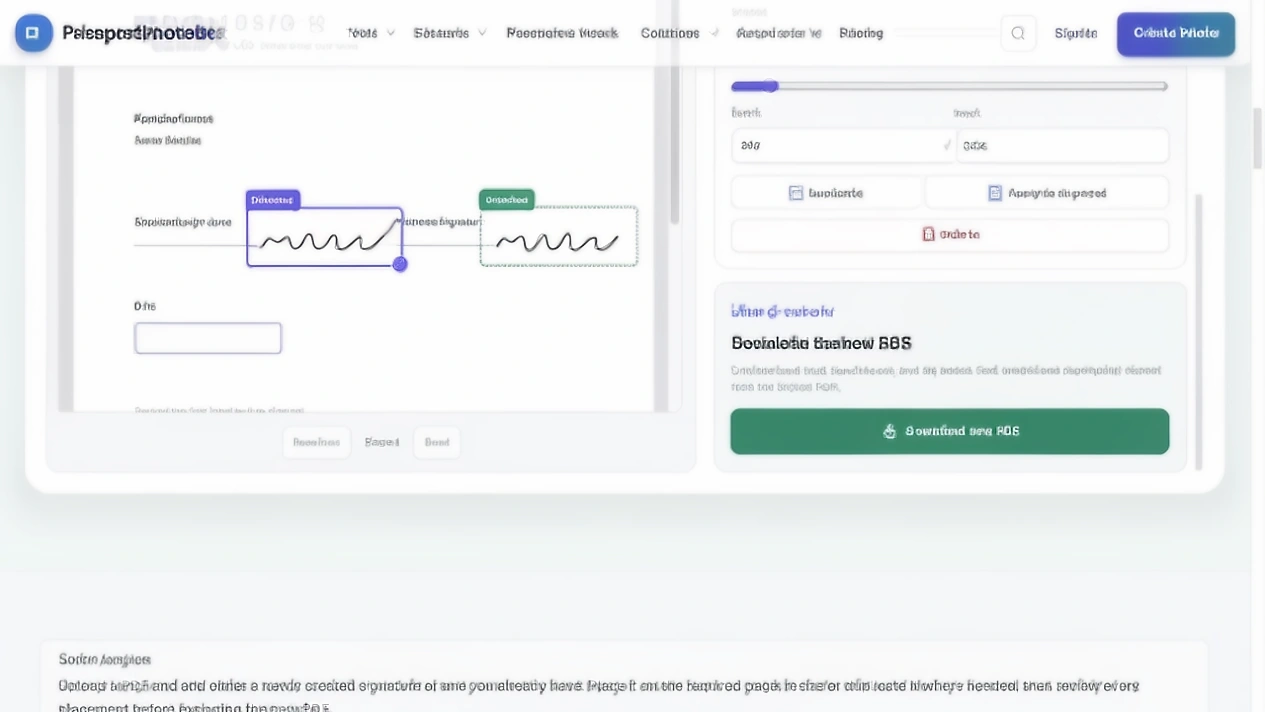
Add a signature to a PDF with PassportPhotoBox
The current tool keeps the source image and placement decisions separate. This is the verified workflow:
- 1.Choose Choose PDF or drop the document into the upload area.
- 2.Upload the prepared image with Upload signature image. The tool also exposes Remove signature background when a source needs that cleanup.
- 3.Review detected boxes from Detect “Signature” labels, or use Add location for a manual placement.
- 4.Use Previous and Next to reach the correct page. Read the surrounding label before selecting a box.
- 5.Drag the overlay, use its corner handle or adjust Width, Height, Left % and Top %. Use Duplicate, Apply to all pages or Delete only when the page map supports it.
- 6.Review every affected page, then select Download new PDF and reopen the saved copy outside the tool.
Check the placement before you use the PDF
Use a blank form or a copy with no private details before trying the placement steps on a real document. Confirm that the detected locations, manual placement, page navigation and export match the document you are preparing.
| Test | What the current tool shows |
|---|---|
| Two signature labels | Two editable detected placements appeared on page 1. |
| Prepared PNG signature | The image appeared in both overlays. |
| Selected placement | A resize handle and Width, Height, Left % and Top % controls appeared. |
| Manual placement | The Locations card exposed Add location. |
| Placement list | Each location showed its page number. |
| Export control | Download new PDF enabled after the PDF, image and placement were ready. |
These checks confirm the interface, not acceptance by every recipient.
A PDF can contain more private information than the signature
An application PDF can include an address, identity number, financial detail or another person's information. The live tool describes itself as a private PDF tool that runs in your browser and says the original stays local in this workflow.
Keep the source and export under your control because a download folder, cloud backup or message attachment can preserve a sensitive file after the browser task ends. Use only a PDF you are authorised to modify, keep the unsigned source separately and read the current privacy information.
PDF signature questions
How do I add a signature to a PDF online?
Upload the PDF and signature image, select or add a location, resize the overlay, review every placement and use Download new PDF.
Can I use my own handwritten signature?
Yes, when the recipient accepts a signature image and you are authorised to use the mark. Prepare a clean image when the scan includes extra paper.
Can the tool find a signature field?
For selectable PDF text, it can detect labels such as Signature or Sign here and create editable suggestions. Read the field and confirm each location.
Does placing an image create a digital signature?
No. It creates a visible image and does not create a certificate, verify identity or provide cryptographic document protection.
Can I add the signature to several pages?
The tool has Duplicate and Apply to all pages actions. Use them only when the document calls for the same mark, then review every copy.
What if the PDF is a scan or the file is locked?
A scan without selectable text can use Add location and manual placement. A locked file needs an authorised unlocked copy.
Place an authorised signature on a PDF
Read the field, review every placement and export a new copy only after the document context is correct.
Placement is finished only after context and export are checked
A signature image belongs in a PDF when the signer, field, page and signing method match the instruction. Prepare the source, read the label, place the mark and inspect the exported file outside the editor.
When a recipient requires DSC, eSign or signing with a certificate, use that system. When an image is accepted, confirm the correct person, field and file.
Sources checked for this guide
The tool names and controls described here come from the current PassportPhotoBox interface. Confirm the live instruction for the document, country and recipient.